



Apple released iOS 26.5 on May 11, and that update brought end-to-end encrypted RCS messaging to your iPhone and more. But when Apple released iOS 26.1 in November, that update introduced a way to adjust some Liquid Glass elements across your device. This new setting could help resolve readability issues some folks on Reddit noted in iOS 26. So if you’ve had trouble reading things on your device and have iOS 26.1 or later downloaded on it, you should give this setting a shot.
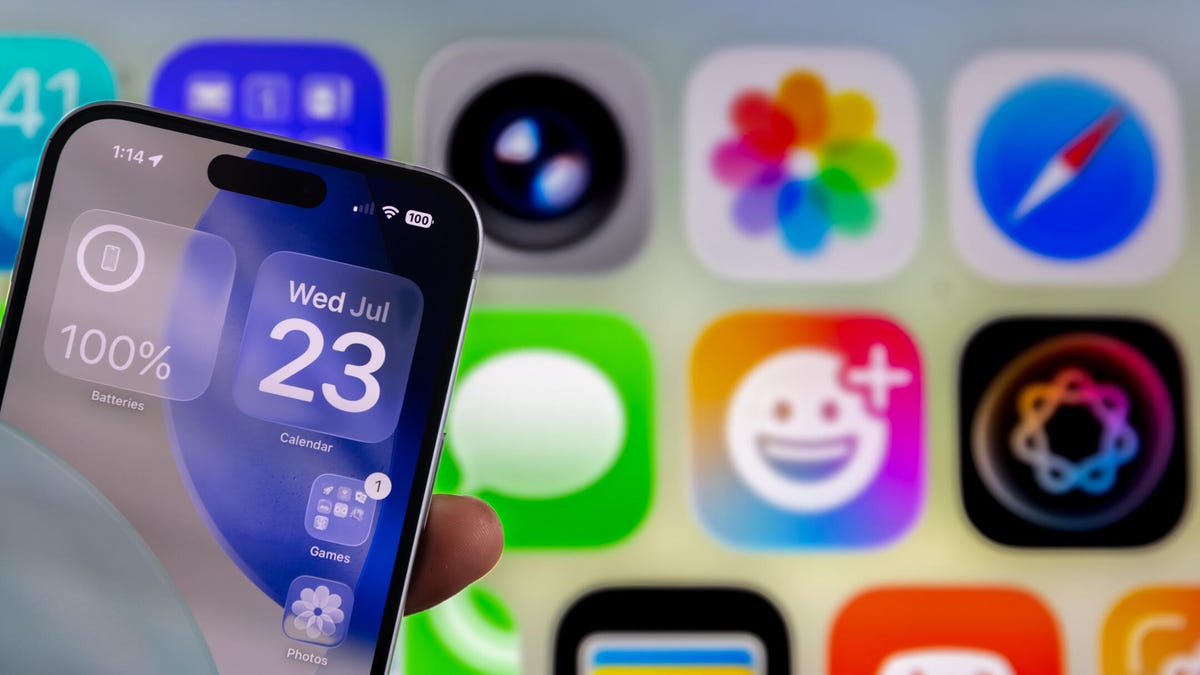
Apple introduced the Liquid Glass design in September alongside iOS 26. It’s the first major visual change on iPhones since iOS 7 in 2013. Before iOS 26.1, you only had a few ways to change Liquid Glass elements on your iPhone. You could add a dark tint to home screen elements or adjust the Reduce Transparency setting to alter how Liquid Glass looked across your device.
But Apple introduced new Liquid Glass settings in iOS 26.1 that allows you to modify specific elements on your iPhone, such as your Notification Center and certain search bars, without affecting other elements, like your home screen.
Here’s where to find the Liquid Glass settings if you’re running iOS 26.1 or later, along with my recommended setup.
Where to find Clear and Tinted Liquid Glass options
1. Tap Settings.
2. Tap Display & Brightness.
3. Tap Liquid Glass.
In the Liquid Glass menu, you’ll see two options: Clear and Tinted. Clear is the default setting and Tinted makes the Liquid Glass elements less transparent.
“Clear is more transparent, revealing the content beneath,” Apple writes for the setting. “Tinted increases opacity and adds more contrast.”
Tinted doesn’t totally eliminate Liquid Glass elements in menus, but it does minimize the design’s effects. Once Tinted is enabled, some elements and menus almost appear opaque, like the search bar in Messages, until you scroll over something colorful or bold.
Dark mode with Tinted Liquid Glass (far right) is my personal preference.
These Liquid Glass settings also won’t change your iPhone’s Light or Dark display settings. You can enable Tinted and be in Light mode or enable Clear in Dark mode. But Dark mode with the Tinted setting looks clean to me and is my personal preference.
For more iOS news, here’s everything you should know about iOS 26.5 and iOS 26.4. You can also check out our iOS 26 cheat sheet.
Watch this: The New Gemini Isn’t the Siri We Need
Read the full article here