




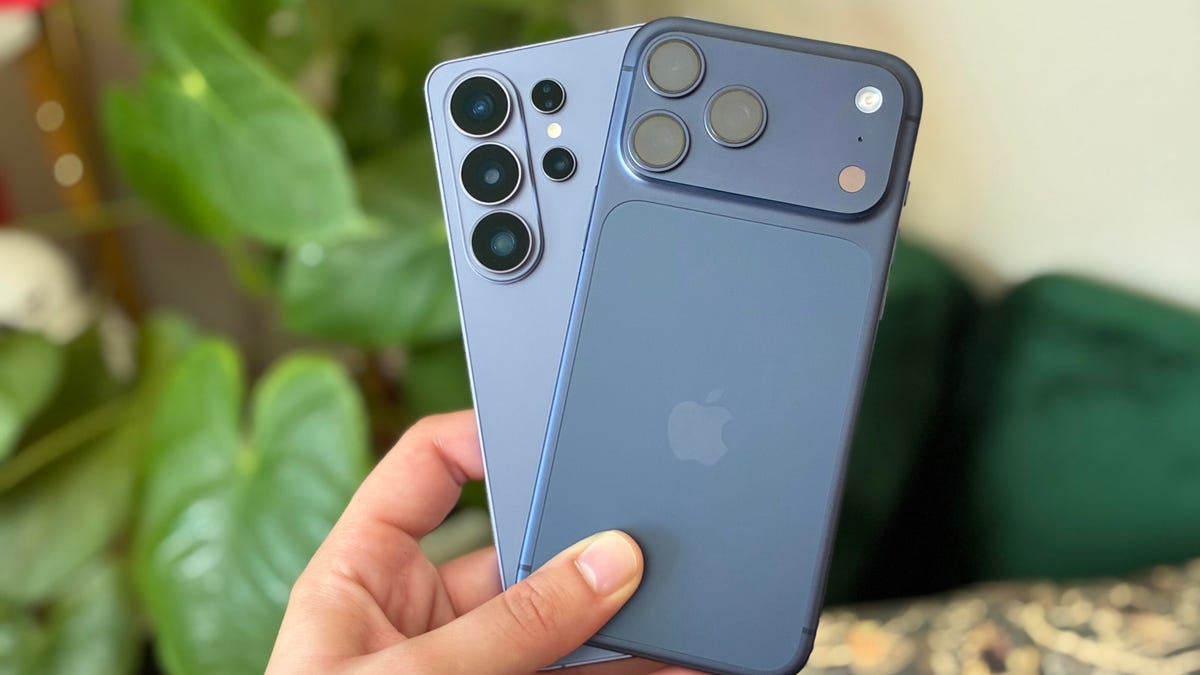
At long last, sharing content between iPhones and Samsung Galaxy phones just got a lot simpler. Samsung has added support for Apple’s AirDrop feature in Quick Share, so you can quickly send media between the two platforms with a few taps.
The compatibility is launching first on the Galaxy S26 series, though Samsung says it’ll expand to more devices soon. You can share content with any Apple device that supports AirDrop, like iPhones, Macs and iPads.
This long-overdue update removes a persistent bottleneck. Sharing a batch of photos and videos after a hangout can be a pain if not everyone is using an Apple or Android device. This should help remove that friction.
Watch this: Galaxy S26 Ultra, 48 Hours Later: My Top New Features
Samsung isn’t the only Android phone maker to add AirDrop support. Google brought it to Pixel 10 phones in November, and expanded the feature to Pixel 9 devices in February. It may only be a matter of time before more Android phones join the roster.
How to send content from a Galaxy S26 phone to an iPhone
To go from a Galaxy device to an iPhone, use Quick Share’s new AirDrop compatibility.
- First, go to your Galaxy S26’s Settings, and tap on Connected Devices.
2. Tap on Quick Share.
3. Hit the toggle next to Share with Apple devices to turn that on. You won’t have to do this again, unless you manually turn this setting off later.
4. Make sure AirDrop on your iPhone is set to Everyone for 10 Minutes.
5. Now, back to the Galaxy device. Find the photo or media you want to send and hit the Share button.
6. Tap Quick Share.
7. Tap the Apple device you want to send to.
Success!
How to send content from an iPhone to a Galaxy phone
Now let’s go the other way around.
- First, swipe down to access the Quick Settings Panel on your Galaxy device. Tap Quick Share Contacts.
You’ll see this window appear, which lets you receive content from nearby devices. Make sure you keep it open.
2. Go to your iPhone and find the photo or media you want to send. Tap the Share button.
3. Find your Galaxy device and tap on it to send.
And you’re all done!
Read the full article here